
Re-authorize your HubSpot account
Last updated February 7, 2026
If you’re seeing HubSpot permission or authentication errors while using OutboundSync, it may be necessary to re-authorize your HubSpot connection.
This process refreshes your integration permissions (scopes) and resolves issues caused by expired tokens or missing access.
Common errors this fixes
You may need to re-authorize if you see errors such as:
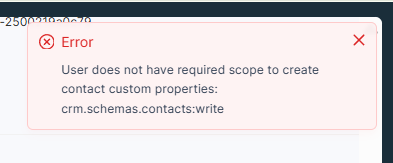
User does not have required scope to create contact custom properties
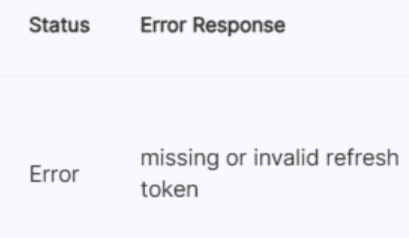
Missing or invalid refresh token (seen in webhook history)
These errors typically occur when HubSpot permissions change, tokens expire, or the integration needs to request updated scopes.
Confirm your permissions
First, you need to check that your HubSpot account has sufficient permissions.
OutboundSync requires the user to have Super Admin access to their HubSpot portal in order to authorize the integration successfully.
To verify this, go to HubSpot Settings → Users & Teams, select the connected user, and confirm Super Admin permissions are enabled.
Without Super Admin access, HubSpot may block required scopes and prevent OutboundSync from creating or updating properties even after reauthorization.
Quick fix: Re-authorize connection
The first step is to remove and reconnect your HubSpot account inside OutboundSync.
- Log in to OutboundSync
- Navigate to Connected Accounts → HubSpot
- Delete the existing HubSpot profile/connection
- Click Sign in with HubSpot and sign in to your portal
This will prompt HubSpot to request the required permissions again.
Once reconnected, retry the action that previously failed (such as updating properties or syncing an activity).
Thorough fix: Full reinstall
If re-authorizing inside OutboundSync does not resolve the issue, you may need to uninstall and reinstall the HubSpot app connection.
- Log in to HubSpot
- Go to Settings
- Navigate to Integrations → Connected Apps
- Find OutboundSync
- Click Uninstall
Then return to OutboundSync and reconnect:
- In OutboundSync , go to Connected Accounts → HubSpot
- Delete the existing HubSpot profile/connection
- Click Sign in with HubSpot again and select your portal
This ensures HubSpot resets all permissions and refresh tokens from scratch.
If everything above looks correct and the issue persists, please reach out to the OutboundSync support team at service@outboundsync.com with a screenshot of the error, your OutboundSync accounts email address, and any relevant error details. We’re happy to help get everything working again.